Beyond the Table: Cards and Kanban Views in FireCMS

We’ve been staring at a spreadsheet for years.
Rows and columns. Cells and headers. When we built FireCMS, the table view made sense — it’s familiar, it’s dense, it handles data well. And for many use cases, it’s still the right choice. But after years of using our own product, we kept hitting the same walls.
Browsing a products collection with images? Sure, we had thumbnails — but they were cramped into table cells, fighting for space between columns of text. You couldn’t browse visually, you had to scan rows. Managing content workflows? We’d filter by status, scroll, filter again, scroll more. Every time we wanted to know “what’s in progress?”, it felt like work.
We built these tools for our users, but we’re users too. And honestly? We got tired of only having the spreadsheet.
So we did something about it. Probably my favorite feature in a long time.
FireCMS 3.0 introduces Cards View and Kanban View — two new ways to visualize your collections that we’ve wanted for a long time. The table view isn’t going anywhere (it’s still the best choice for dense data), but now you have options.
TL;DR: Set
defaultViewMode: "cards"for visual content ordefaultViewMode: "kanban"for workflow management. One line of config.
The Three Views
FireCMS now has three visualization modes:
| View | Best For | Think of it as… |
|---|---|---|
| Table | Dense data, bulk editing, detailed records | Excel on steroids |
| Cards | Visual content, galleries, catalogs | Pinterest for your CMS |
| Kanban | Workflows, pipelines, status tracking | Trello built into FireCMS |
Users can switch between views using the view selector in the toolbar — you just control the default.
Cards View: See Your Content
For collections with images — products, blog posts, user profiles — rows of text don’t cut it. The Cards View gives you a responsive grid where visuals are front and center.
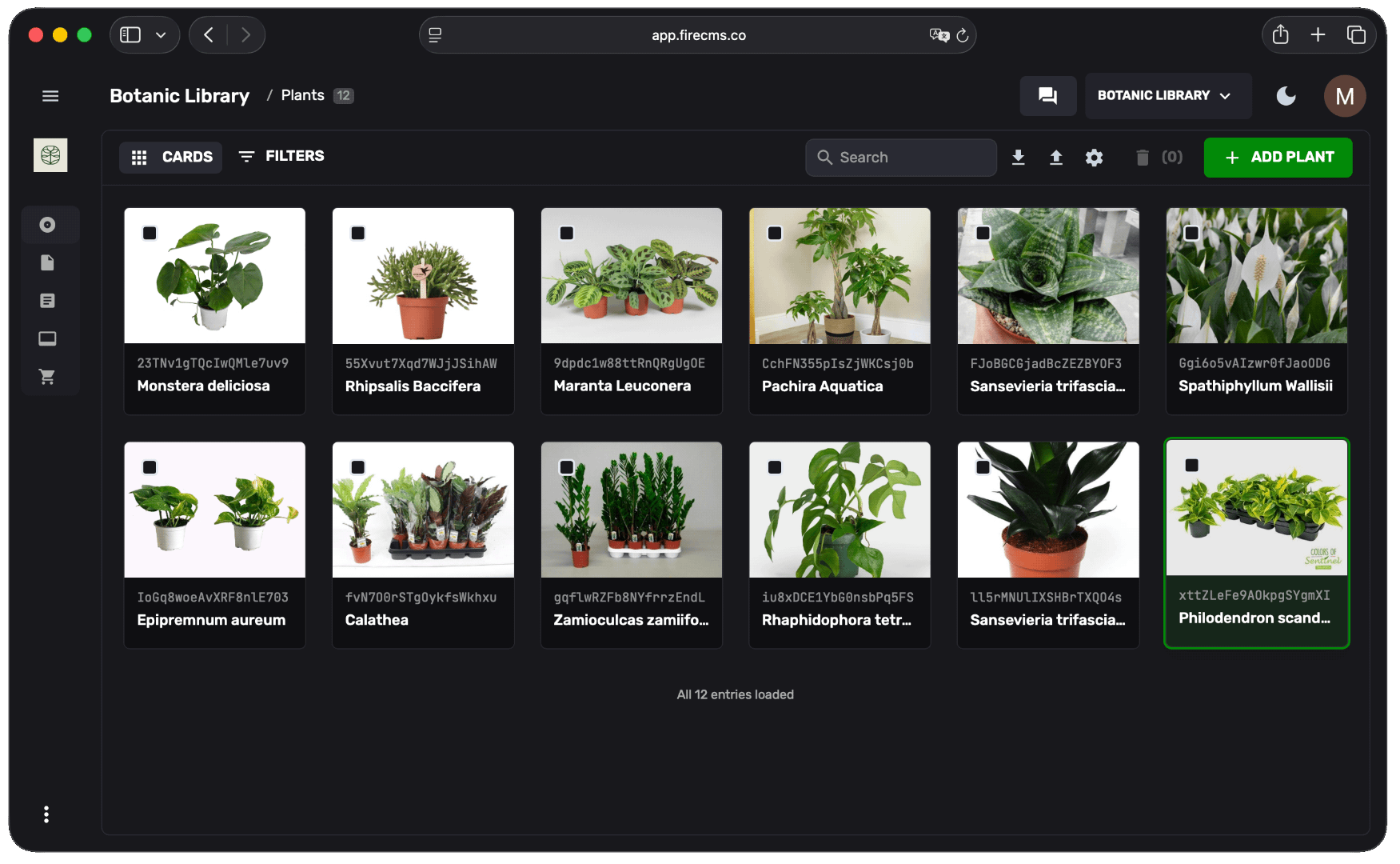
Each entity becomes a card with thumbnails and key details visible at a glance. Content editors can finally browse visually instead of squinting at filenames.
Enable Cards View
const productsCollection = buildCollection({ path: "products", name: "Products", defaultViewMode: "cards", // ← That's it! properties: { name: buildProperty({ dataType: "string", name: "Name" }), image: buildProperty({ dataType: "string", storage: { mediaType: "image", storagePath: "products" } }), price: buildProperty({ dataType: "number", name: "Price" }), description: buildProperty({ dataType: "string", name: "Description", multiline: true }) }});Good for: Product catalogs, blog posts, media libraries, team directories, portfolios — anything where you need to see it.
Kanban View: Track Your Workflow
No more filtering lists to find what’s “In Progress.” The Kanban View turns your collection into a workflow board where entities move across columns as their status changes.
Drag a task from “To Do” to “Done.” Watch an order move from “Processing” to “Shipped.” Project management built into your CMS.
Enable Kanban View
Set defaultViewMode: "kanban" and specify which property defines your columns (must be an enum):
const tasksCollection = buildCollection({ path: "tasks", name: "Tasks", defaultViewMode: "kanban", kanban: { columnProperty: "status" // Columns come from this enum }, properties: { title: buildProperty({ dataType: "string", name: "Task" }), status: buildProperty({ dataType: "string", name: "Status", enumValues: { todo: "To Do", in_progress: "In Progress", review: "Review", done: "Done" } }), assignee: buildProperty({ dataType: "string", name: "Assignee" }), dueDate: buildProperty({ dataType: "date", name: "Due Date" }) }});Drag-and-Drop Reordering
Want users to reorder cards within a column? Add an orderProperty:
const tasksCollection = buildCollection({ path: "tasks", name: "Tasks", defaultViewMode: "kanban", kanban: { columnProperty: "status" }, orderProperty: "order", // ← Enables drag-and-drop reordering properties: { title: buildProperty({ dataType: "string", name: "Task" }), status: buildProperty({ dataType: "string", name: "Status", enumValues: { todo: "To Do", in_progress: "In Progress", done: "Done" } }), order: buildProperty({ dataType: "number", name: "Order" }) }});The orderProperty must reference a number field. FireCMS uses fractional indexing to maintain order without rewriting every document on each reorder.
⚠️ Firestore Users: Kanban view requires a composite index on your column property. Don’t worry — Firestore will show you the exact index link when you first load the view.
Good for: Task management, order fulfillment, content pipelines, support tickets, hiring workflows — anything with stages.
No Code? No Problem.
On FireCMS Cloud? You can configure all of this through the UI. No TypeScript needed.
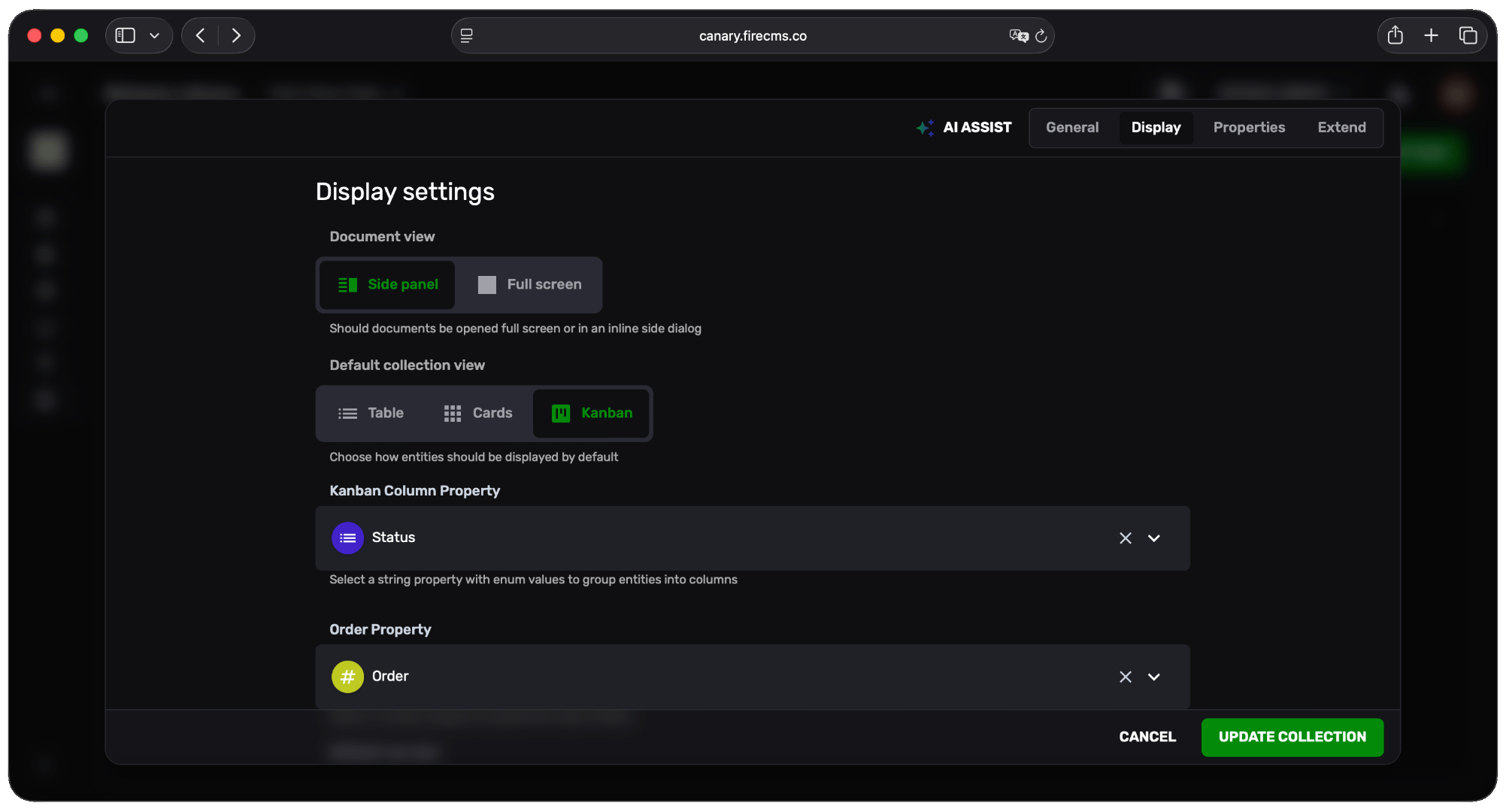
The Display settings panel lets you:
- Switch between Table, Cards, and Kanban views
- Select your Kanban column property
- Choose an order property for drag-and-drop
Once configured, your Kanban board is ready:
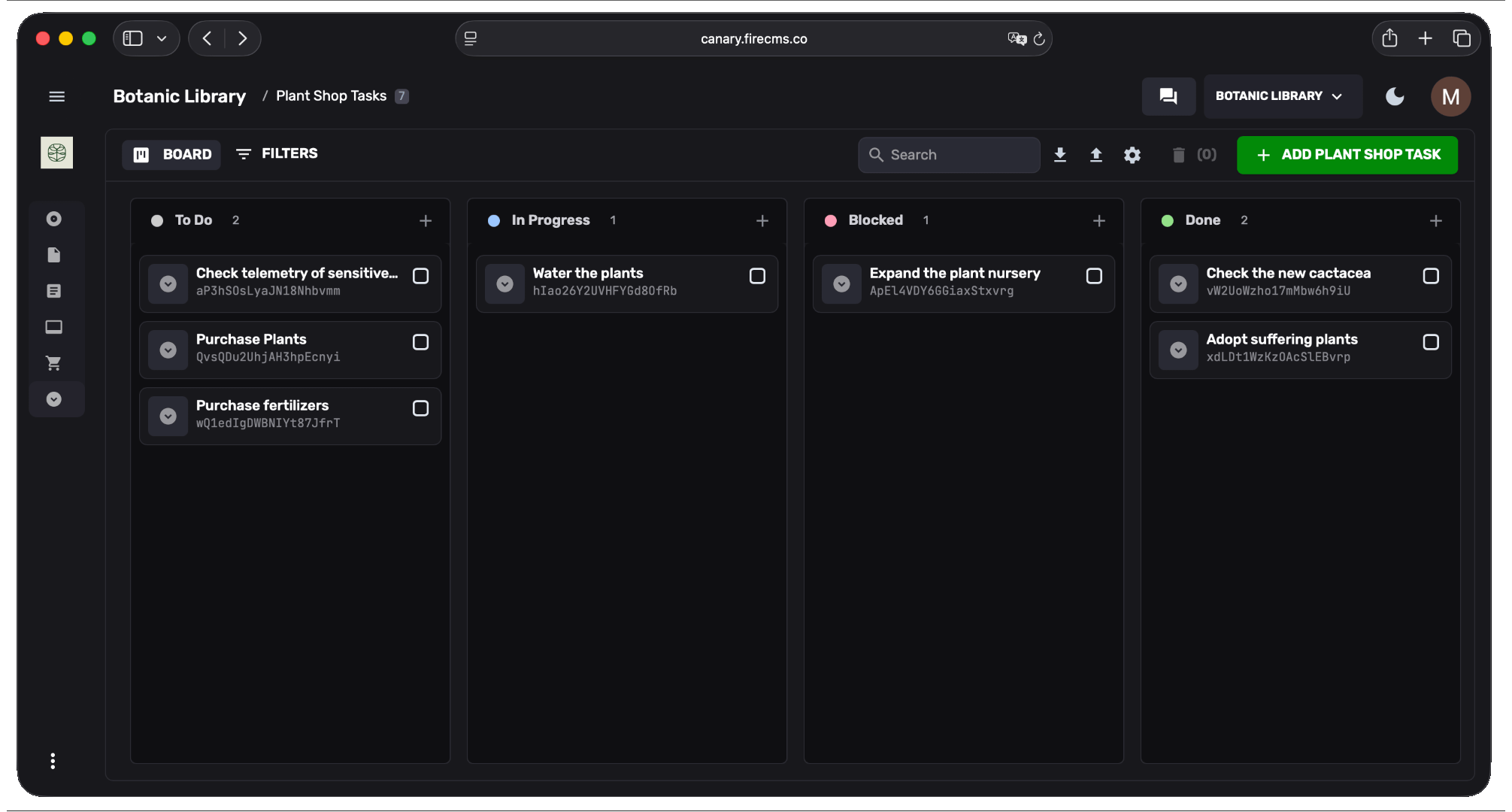
This “Plant Shop Tasks” board has columns for To Do, In Progress, Blocked, and Done. Drag cards between columns to update status. Drag within columns to reorder.
Some Real Examples
Here’s how different teams might set things up:
E-commerce:
- Products → Cards (visual browsing)
- Orders → Kanban (fulfillment pipeline)
- Customers → Table (bulk operations)
Publishing:
- Articles → Cards (see featured images)
- Editorial pipeline → Kanban (draft → review → published)
- Authors → Table (contact details)
SaaS Operations:
- Support tickets → Kanban (open → investigating → resolved)
- Users → Cards (profiles with avatars)
- Audit logs → Table (dense data)
Get Started
Update to the latest FireCMS:
npm install firecms@latestAlready on FireCMS Cloud? Head to your collection settings and pick a view mode — it’s already there.
Questions? Join us on Discord or check the docs.
Your data deserves a view that makes sense. Now it has three.
FireCMS | Documentation | GitHub | Discord