Building a smarter React Select that reads its value from its children

When you build a select input in React, you almost always end up doing some version of the same thing:
- Keep a
valuein state. - Define a list of options
{ value, label }. - Map those options into JSX for the dropdown.
- Remember to also show the right label in the “selected” area.
It works, but it’s easy to duplicate yourself and get out of sync.
In FireCMS, we wanted something slightly different for our Select component in @firecms/ui:
Let the children (
<SelectItem>elements) be the single source of truth for how each option looks, and let the parentSelectderive the current label from those children automatically.
In this post we’ll look at how you would usually do this in React, and why our solution is a bit smarter by leaning on the React APIs.
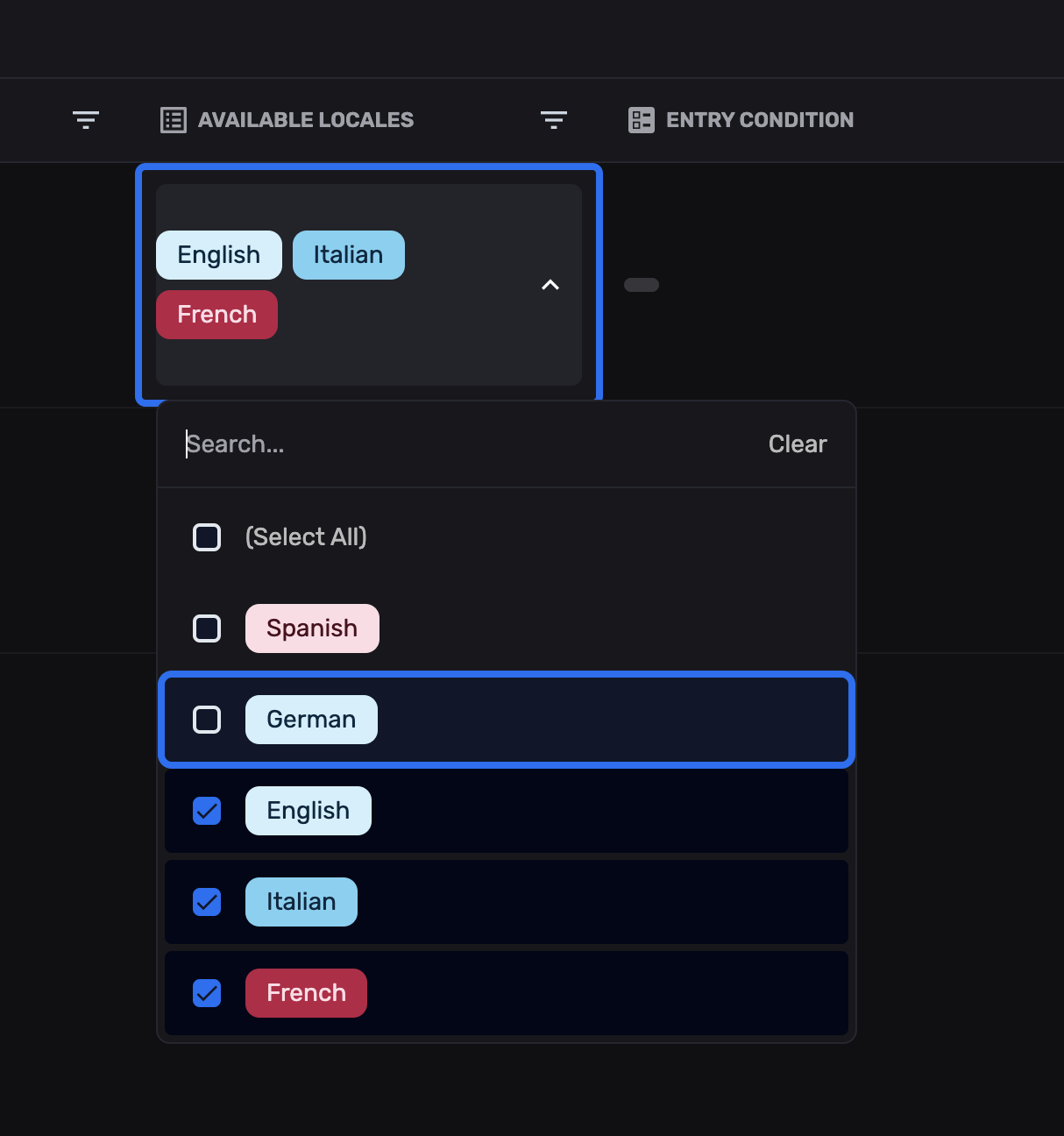
How we usually build selects in React
Native <select> and <option>
The most basic pattern uses the browser’s built‑in <select>:
const roles = [  { value: "admin", label: "Admin" },  { value: "editor", label: "Editor" },  { value: "viewer", label: "Viewer" }];
function RoleSelect() {  const [role, setRole] = useState("editor");
  return (    <select      value={role}      onChange={(e) => setRole(e.target.value)}    >      {roles.map((option) => (        <option key={option.value} value={option.value}>          {option.label}        </option>      ))}    </select>  );}
This is simple and accessible, but:
- Styling is limited.
- Composing complex labels (icons, badges, descriptions) gets awkward.
- If you build a custom UI later, you often end up re‑implementing everything.
Custom select components
A step up is a custom component: maybe a button that opens a menu, with a list of clickable items. Typically it still takes an options array:
type Option = { value: string; label: string };
function MySelect({  value,  onChange,  options}: {  value: string;  onChange: (value: string) => void;  options: Option[];}) {  const selected = options.find((o) => o.value === value);
  return (    <div>      <button type="button">        {selected?.label ?? "Select…"}      </button>      <div>        {options.map((o) => (          <div key={o.value} onClick={() => onChange(o.value)}>            {o.label}          </div>        ))}      </div>    </div>  );}
Now you control the UI, but the pattern is the same:
- Options live in a separate data structure (
options). - You still only control the selected value, not its label — the label lives in the children you render, so the select itself has no built‑in way to know which label to show for a given value unless you re‑implement that mapping.
The usual options pattern and its downsides
The canonical shape is:
type Option<T extends string | number> = { value: T; label: string;};And usage:
const options: Option<string>[] = [  { value: "active", label: "Active" },  { value: "archived", label: "Archived" }];
// In the triggerconst selected = options.find((o) => o.value === value);
// In the menuoptions.map((o) => <Item key={o.value}>{o.label}</Item>);
This has a few drawbacks:
-
Duplication
The idea of “what this option looks like” is spread across:- The
labelstring. - The JSX used when rendering the dropdown.
- Whatever logic you use to render the selected value.
- The
-
Risk of getting out of sync
You add an icon or a badge to the dropdown item, but forget to update the selected value display. You rename a label in one place but not the other. -
Limited composition
Options often want to be more than text:{value: "pro",label: <><StarIcon /> Pro</>}You can pass JSX as
label, but now your “data structure” is actually UI, and you’re pushing layout concerns into an options array.
We wanted to lean into React’s strengths instead: children as the source of truth.
The FireCMS Select: children as the source of truth
In @firecms/ui, the Select component wraps Radix Select and adds FireCMS‑specific behavior.
The API we want in userland is something like:
import { Select, SelectItem } from "@firecms/ui";
type Role = "admin" | "editor" | "viewer";
<Select  value={role}  onValueChange={setRole}  label="Role">  <SelectItem value="admin">Admin</SelectItem>  <SelectItem value="editor">Editor</SelectItem>  <SelectItem value="viewer">Viewer</SelectItem></Select>
A few important decisions here:
- There is no
optionsarray`. - Each
SelectItem:- Knows its own
value. - Defines its own label UI (
children).
- Knows its own
- The parent
Select:- Receives a
valueprop. - Needs to figure out which child matches that value.
- Uses that child’s contents to render the selected value in the trigger.
- Receives a
So the question becomes:
How can the
Selectread from its children to derive the current label?
That’s where the React APIs (React.Children, React.isValidElement, hooks) come in.
The core idea: find the selected child via React.Children
Inside Select.tsx, we already have access to:
children: theSelectItemelements.value: the current value.renderValue/placeholder: how to show the current state.
We compute a derived value, displayChildren, that holds the label of the currently selected item:
const hasValue = Array.isArray(value)  ? value.length > 0  : value != null && value !== "" && value !== undefined;
const displayChildren = useMemo(() => {  if (!hasValue || renderValue) return null;
  // Find the child that matches the current value to display its content  let found: React.ReactNode = null;  Children.forEach(children, (child) => {    if (React.isValidElement(child) && String((child.props as any).value) === String(value)) {      found = child.props.children;    }  });  return found;}, [children, hasValue, renderValue, value]);
Let’s unpack this.
Traversing children with React.Children.forEach
props.children in React is intentionally flexible: it can be a single element, an array, a fragment, null, etc.
To iterate safely, we use React.Children.forEach:
- It normalizes all those shapes.
- It calls our callback for each actual child.
Inside, we guard with React.isValidElement(child) so we only touch objects that have props:
Children.forEach(children, (child) => { if (!React.isValidElement(child)) return; // child.props is safe here});That’s the first piece: a robust way to inspect our SelectItem children.
Matching on props.value
Each SelectItem is declared like:
<SelectItem value="admin">Admin</SelectItem>So, when we inspect child.props.value, we can compare it against the current value:
if (String(child.props.value) === String(value)) { found = child.props.children;}We use String(...) here to normalize primitive types. In our real implementation there’s also a dataType prop ("string" | "number" | "boolean") that controls how to parse and emit values.
The important bit is:
- We walk through the children.
- We look for the one whose
props.valuematches the currentvalue. - We store that child’s
childrenasfound.
That found value is exactly what we want to display in the trigger.
Memoizing with useMemo
Scanning children is cheap for small select lists, but it’s still work. We only need to recompute when:
- The set of children changes.
- The current
valuechanges. - A
renderValueoverride appears or disappears.
So we wrap it in useMemo:
const displayChildren = useMemo(() => { // scan children...}, [children, hasValue, renderValue, value]);This gives us:
- A clear dependency list.
- Stable performance when props haven’t changed.
Now displayChildren always holds:
- The JSX for the selected option’s label, if we found it.
- Or
nullif there’s no match or no value.
Rendering the selected value intelligently
The trigger part of the Select looks like this (simplified):
<SelectPrimitive.Value placeholder={placeholder} className="w-full"> {hasValue && value !== undefined && renderValue ? renderValue(value) : (displayChildren || placeholder) }</SelectPrimitive.Value>There’s a nice little priority chain here:
-
If there is a
valueand arenderValueprop:- Call
renderValue(value)and render the result. - This lets the consumer completely override how the selected value is displayed.
- Call
-
Otherwise:
- Use
displayChildrenif we found a matchingSelectItemchild. - Fall back to
placeholderif not.
- Use
This is where the “smart” behavior comes together:
- Most of the time, you don’t need
renderValue.- You just define your
SelectItems, and the trigger automatically shows the label from the selected child.
- You just define your
- If you do need custom display logic (e.g. add a summary of multiple fields),
renderValuegives you an escape hatch.
No separate options array. No repeated mapping for the selected value.
Handling primitive types with dataType
Our Select supports string | number | boolean values via a dataType prop:
export type SelectProps<T extends SelectValue = string> = { value?: T; dataType?: "string" | "number" | "boolean"; // ...};On change, it normalizes back to the appropriate type:
const onValueChangeInternal = useCallback((newValue: string) => {  let typedValue: SelectValue = newValue;
  if (dataType === "boolean") {    if (newValue === "true") typedValue = true;    else if (newValue === "false") typedValue = false;  } else if (dataType === "number") {    if (!isNaN(Number(newValue)) && newValue.trim() !== "") {      typedValue = Number(newValue);    }  }
  onValueChange?.(typedValue as any);  // also synthesizes a ChangeEvent for onChange}, [onChange, onValueChange, name, dataType]);
This matters because headless primitives like Radix Select work with string values internally, but in a CMS like FireCMS you often want:
- Numbers stored as numbers.
- Booleans stored as booleans.
By:
- Converting to/from strings at the boundary.
- Matching children using
String(value)internally.
…the component stays:
- Ergonomic to use (
valuecan be anumberorboolean). - Compatible with the underlying Radix APIs.
Why this approach is “smart”
A few reasons this pattern works well in practice:
1. Children are the single source of truth
The SelectItem is where you define:
- The value (
valueprop). - The label UI (
children).
You don’t have to keep:
- An
optionsarray somewhere else. - A separate piece of logic to derive the selected label from that array.
If you change the label inside a SelectItem, everything updates:
- The dropdown list.
- The trigger display.
2. Less duplication, fewer bugs
When the label for an option lives in one place:
- There’s nothing to get out of sync.
- You avoid the “we changed the label in the menu but not in the selected display” class of bugs.
- You avoid having identical strings scattered in multiple data structures.
3. Plays nicely with Radix Select
Radix gives you:
- Keyboard navigation.
- ARIA attributes.
- Portals and positioning.
- A consistent interaction model.
Our Select component wraps it and adds:
- Children‑based matching (
Children.forEach,isValidElement). - Type handling via
dataType. - A
renderValueoverride. - Additional styling and layout.
You keep all the accessibility and behavior from the headless library, while still having a high‑level, ergonomic API.
4. Type‑safe and flexible
With TypeScript generics:
SelectProps<T>can be parameterized by the value type.SelectItemProps<T>ensures each item’svaluematches.
Together with dataType, this gives you:
- Correct types at compile time.
- Correct shapes at runtime after parsing from strings.
You can support:
- Simple enums (
"draft" | "published"). - Numbers (
1, 2, 3). - Booleans (
true/false).
All while keeping the React code straightforward.
5. JSX labels without friction
Because labels are just children, they can be anything:
<SelectItem value="pro"> <div className="flex items-center gap-2"> <StarIcon className="text-yellow-400" /> <span>Pro plan</span> </div></SelectItem>No need to squeeze that into a { value, label } object, or invent a mini templating DSL. You just write React.
The parent Select doesn’t care what the label looks like—it just reuses the child’s JSX when that item is selected.
Example: how it feels to use
Here’s a minimal example that is close to what we use in FireCMS:
import { Select, SelectItem } from "@firecms/ui";
type Role = "admin" | "editor" | "viewer";
function RoleSelect() {  const [role, setRole] = useState<Role>("editor");
  return (    <Select<Role>      value={role}      onValueChange={setRole}      label="Role"      dataType="string"    >      <SelectItem value="admin">        <span className="font-semibold">Admin</span>      </SelectItem>      <SelectItem value="editor">        <span>Editor</span>      </SelectItem>      <SelectItem value="viewer">        <span className="text-gray-500">Viewer</span>      </SelectItem>    </Select>  );}
Notice what’s missing:
- There’s no
const options = [...]. - There’s no
selected = options.find(...). - There’s no duplicated label logic for the trigger vs. the dropdown.
You just define your items once, and the component does the rest.
Where else to use this pattern
In FireCMS, this Select component shows up all over the place:
- Enum fields in forms.
- Filters in tables.
- Any place where you choose one of many well‑defined values.
The pattern—derive stateful display from children—isn’t limited to selects. You can reuse it for:
- Tabs: derive the active tab label from
Tabchildren. - Segmented controls: derive the selected segment’s label/icon from children.
- Radio groups: derive the selected summary from the chosen radio.
The recipe is always similar:
- Accept
childrenas the definition of options/items. - Accept a
valueprop that identifies the chosen one. - Use
React.Children.forEach(ormap) +React.isValidElementto:- Find the matching child by
props.value(or similar). - Extract what you need from
child.props(oftenchildren).
- Find the matching child by
- Optional:
- Wrap in
useMemofor performance. - Provide a
renderValueoverride for advanced cases.
- Wrap in
By leaning on React’s own primitives instead of building complex configuration objects, you keep your components:
- More declarative.
- Less repetitive.
- Easier to evolve.
And in a CMS like FireCMS, where you have many selects with complex labels, that small “smart” behavior pays off quickly.