

Collection Editor UI
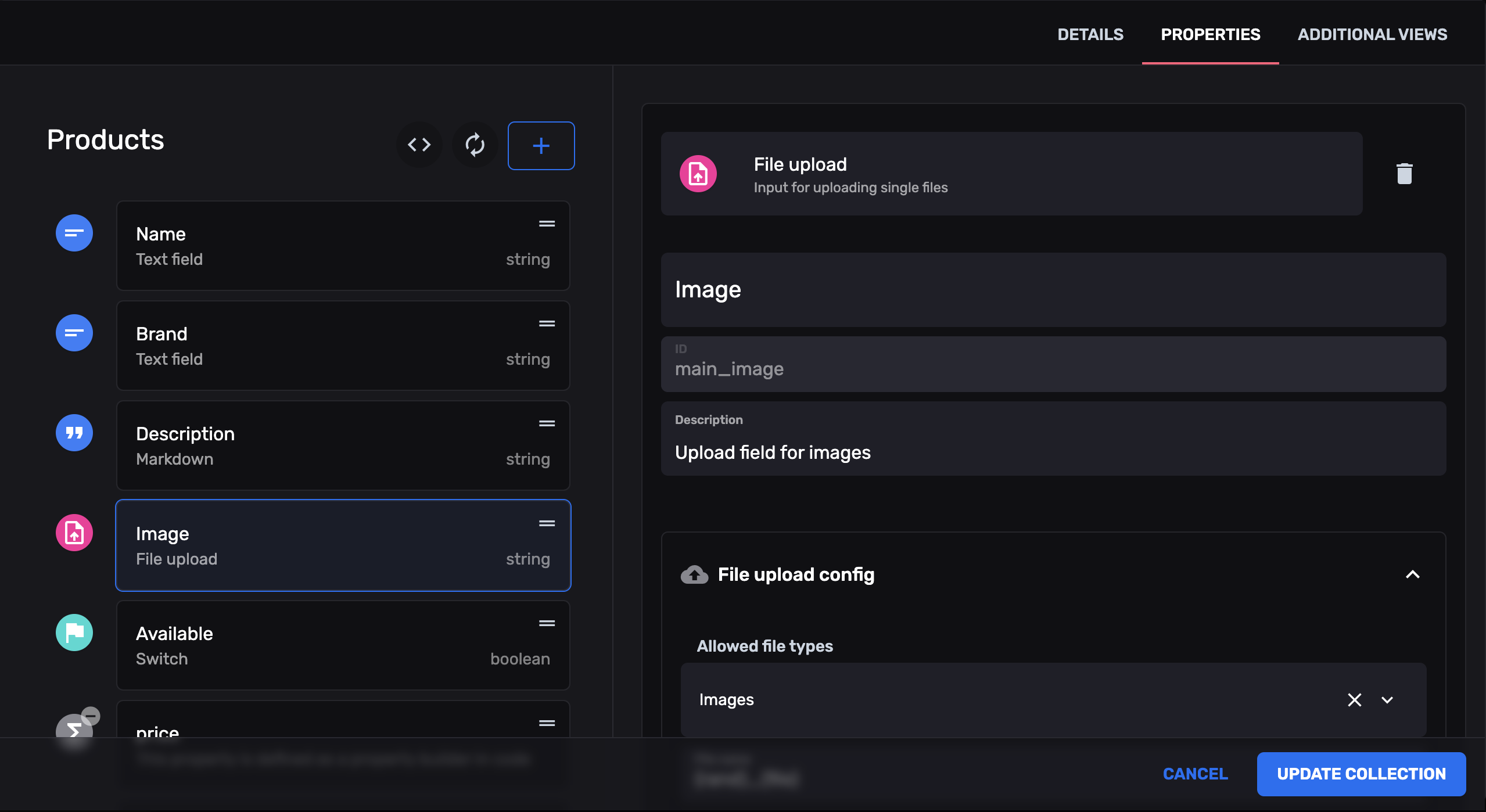
This document describes how to use the Collection Editor UI Plugin with FireCMS to manage and configure your Firestore collections. The Collection Editor UI Plugin provides an interface for creating, editing, and organizing collections, with support for customizable permissions and configuration options.
Typically, collections in FireCMS are defined in code, and passed as a prop to the NavigationController on
initialization. The Collection Editor UI Plugin allows you to manage collections directly in the application, providing
a more user-friendly and flexible way to organize and configure your Firestore collections.
In this document, we will cover how to set up and use this plugin in your FireCMS application.
Installation
Section titled “Installation”First, ensure you have installed the necessary dependencies. To use the Collection Editor UI Plugin, you need to have FireCMS and Firebase set up in your project.
yarn add @firecms/collection_editoror
npm install @firecms/collection_editorConfiguration
Section titled “Configuration”The plugin requires several configurations, including controllers for managing collection configurations, permissions, and custom views.
Default Configuration
Section titled “Default Configuration”The Collection Editor UI Plugin integrates with your Firestore backend to store and manage collection configurations. By default, configurations are managed internally, but you can customize paths and behaviors as needed.
Firestore Security Rules
Section titled “Firestore Security Rules”Ensure that your Firestore security rules allow the plugin to read and write to the configuration paths. Below is an example of security rules that permit authenticated users to access the collection configurations:
match /{document=**} {  allow read: if isFireCMSUser();  allow write: if isFireCMSUser();}
function isFireCMSUser(){  return exists(/databases/$(database)/documents/__FIRECMS/config/collections/$(request.auth.uid));}
Collection Configuration Plugin
Section titled “Collection Configuration Plugin”The Collection Editor UI Plugin allows you to include a UI for editing collection configurations. You can choose where
the configuration is stored and pass the configuration to the plugin. The plugin includes a controller that saves the
configuration in your Firestore database. The default path is __FIRECMS/config/collections.
The controller includes methods you can use in your components to manage the collection configuration.
const collectionConfigController = useFirestoreCollectionsConfigController({ firebaseApp});You can define your collections in code or use the UI to define them. It is also possible to allow modification in the UI of collections defined in code. You can then merge the collections defined in code with those defined in the UI.
import { useCallback } from "react";import { mergeCollections } from "@firecms/collection_editor";import { productsCollection } from "./collections/products_collection";
// The collection builder is passed to the navigation controllerconst collectionsBuilder = useCallback(() => {    // Define a sample collection in code.    const collections = [        productsCollection        // Your collections here    ];    // Merge collections defined in the collection editor (UI) with your own collections    return mergeCollections(collections, collectionConfigController.collections ?? []);}, [collectionConfigController.collections]);
To add the Collection Editor UI Plugin, include it in the list of plugins passed to the FireCMS component.
const collectionEditorPlugin = useCollectionEditorPlugin({ collectionConfigController});This will add an icon in each collection card that allows you to edit the collection configuration.
Hook Usage
Section titled “Hook Usage”The main hook to utilize the plugin’s functionality is useCollectionEditorPlugin. Here’s an example of how to use it:
import { useCollectionEditorPlugin } from "@firecms/collection_editor";
const collectionEditorPlugin = useCollectionEditorPlugin({    collectionConfigController,    configPermissions: customPermissionsBuilder,    reservedGroups: ["admin"],    getData: async (path, parentPaths) => {        // Fetch and return data for the given path        return fetchDataForPath(path, parentPaths);    },    getUser: (uid) => {        // Retrieve and return user data based on UID        return getUserById(uid);    },    onAnalyticsEvent: (event, params) => {        // Handle analytics events        logAnalyticsEvent(event, params);    }});
Setting up the Plugin
Section titled “Setting up the Plugin”To integrate the Collection Editor UI Plugin into FireCMS, use the useCollectionEditorPlugin hook and pass the
resulting plugin into the FireCMS configuration. This is typically done in your main App component.
Example Configuration
Section titled “Example Configuration”import React, { useCallback } from "react";import { FireCMS, useBuildNavigationController } from "@firecms/core";import { mergeCollections, useCollectionEditorPlugin } from "@firecms/collection_editor";import { useFirestoreCollectionsConfigController } from "@firecms/collection_editor_firebase";import { useFirebaseAuthController, useFirestoreDelegate, useInitialiseFirebase, useValidateAuthenticator} from "@firecms/firebase";import { useBuildUserManagement, userManagementAdminViews, useUserManagementPlugin } from "@firecms/user_management";import { productsCollection } from "./collections/products_collection";import { customPermissionsBuilder } from "./config/permissions";import { CustomCollectionView } from "./views/CustomCollectionView";import { CollectionIcon } from "./components/CollectionIcon";
function App() { const { firebaseApp, firebaseConfigLoading, configError } = useInitialiseFirebase({ firebaseConfig });
const firestoreDelegate = useFirestoreDelegate({ firebaseApp });
const authController = useFirebaseAuthController({ firebaseApp, signInOptions: ["google.com", "password"] });
const collectionConfigController = useFirestoreCollectionsConfigController({ firebaseApp });
const collectionEditorPlugin = useCollectionEditorPlugin({ collectionConfigController, configPermissions: customPermissionsBuilder, reservedGroups: ["admin"], extraView: { View: CustomCollectionView, icon: <CollectionIcon/> } });
const userManagement = useBuildUserManagement({ dataSourceDelegate: firestoreDelegate, authController: authController });
const userManagementPlugin = useUserManagementPlugin({ userManagement });
const collectionsBuilder = useCallback(() => { // Define your own collections const collections = [ productsCollection, // Add other collections here ]; // Merge with collections defined via the Collection Editor UI return mergeCollections(collections, collectionConfigController.collections ?? []); }, [collectionConfigController.collections]);
const plugins = [ collectionEditorPlugin, userManagementPlugin ];
const navigationController = useBuildNavigationController({ collections: collectionsBuilder(), views: customViews, adminViews: userManagementAdminViews, collectionPermissions: collectionEditorPlugin.collectionPermissions, authController, dataSourceDelegate: firestoreDelegate, plugins });
const { authLoading, canAccessMainView, notAllowedError } = useValidateAuthenticator({ disabled: collectionEditorPlugin.loading, authController: authController, authenticator: customAuthenticator, dataSourceDelegate: firestoreDelegate, storageSource });
if (firebaseConfigLoading) { return <LoadingIndicator/>; }
if (configError) { return <ErrorDisplay error={configError}/>; }
return ( <FireCMS navigationController={navigationController} authController={authController} dataSourceDelegate={firestoreDelegate} > {({ context, loading }) => { if (loading || authLoading) { return <LoadingSpinner/>; } if (!canAccessMainView) { return <AccessDenied message={notAllowedError}/>; } return <MainAppLayout/>; }} </FireCMS> );}
export default App;Adding the Collection Editor Views
Section titled “Adding the Collection Editor Views”The Collection Editor UI Plugin provides custom views that need to be added to your FireCMS project. These views are integrated into the FireCMS navigation and allow users to manage collections.
Example Integration
Section titled “Example Integration”import { useCollectionEditorPlugin } from "@firecms/collection_editor";
const collectionEditorPlugin = useCollectionEditorPlugin({ collectionConfigController, configPermissions: customPermissionsBuilder, reservedGroups: ["admin"], extraView: { View: CustomCollectionView, icon: <CollectionIcon/> }});
// Include the plugin in your FireCMS configuration<FireCMS navigationController={navigationController} authController={authController} dataSourceDelegate={firestoreDelegate} plugins={[userManagementPlugin, collectionEditorPlugin]}> {/* Your application components */}</FireCMS>Authenticating Users
Section titled “Authenticating Users”The Collection Editor UI Plugin integrates with your authentication system to ensure that only authorized users can
manage collections. You can use the useValidateAuthenticator hook to authenticate users and determine their access
levels.
Example Usage
Section titled “Example Usage”import { useValidateAuthenticator } from "@firecms/core";
const { authLoading, canAccessMainView, notAllowedError} = useValidateAuthenticator({ disabled: collectionEditorPlugin.loading, authController: authController, authenticator: customAuthenticator, dataSourceDelegate: firestoreDelegate, storageSource: storageSource});
if (authLoading) { return <LoadingIndicator/>;}
if (!canAccessMainView) { return <AccessDeniedError message={notAllowedError}/>;}
// Render your main application viewIntegrating Collection Permissions
Section titled “Integrating Collection Permissions”The Collection Editor UI Plugin includes a collectionPermissions function that determines what operations a user can
perform based on their roles and the collection configuration. This function ensures that users have appropriate access
rights throughout your FireCMS project.
Example Integration
Section titled “Example Integration”const navigationController = useBuildNavigationController({ collections: customCollections, views: customViews, adminViews: userManagementAdminViews, collectionPermissions: collectionEditorPlugin.collectionPermissions, authController, dataSourceDelegate: firestoreDelegate});Note: Applying permissions to a collection overrides the permissions set in the collection configuration.
Error Handling
Section titled “Error Handling”The plugin provides error handling through properties such as configError and collectionErrors in the
CollectionEditor object. These can be used to detect and display error messages when loading or managing collections.
Example Error Handling
Section titled “Example Error Handling”if (collectionEditorPlugin.configError) { return <ErrorDisplay error={collectionEditorPlugin.configError}/>;}
if (collectionEditorPlugin.collectionErrors) { return <ErrorDisplay error={collectionEditorPlugin.collectionErrors}/>;}Using the Plugin within Your Application
Section titled “Using the Plugin within Your Application”Once you have set up the Collection Editor UI Plugin, you will have access to tools and functions for managing your
Firestore collections. You can access the collection management functions and data through the
useCollectionEditorPlugin hook.
Collection Editor Object
Section titled “Collection Editor Object”The collectionEditor object returned by the useCollectionEditorPlugin hook includes the following properties:
loading: Indicates if the collection data is being loaded. Boolean value.collections: Array of collection objects. Contains the collections being managed.saveCollection: Function to persist a collection. Takes acollectionobject and returns a promise resolving with the saved collection.deleteCollection: Function to delete a collection. Takes acollectionobject and returns a promise resolving when the collection is deleted.configError: Holds any error that occurred while loading collection configurations.collectionPermissions: Function that defines the permissions for collections based on user roles and collection configurations.createCollection: Function to initiate the creation of a new collection.reservedGroups: Array of group names that are reserved and cannot be used in collection names.extraView: Custom view added to the FireCMS navigation for collection management.defineRolesFor: Function to define roles for a given user, typically integrated into your auth controller.authenticator: Optional. Authenticator callback built from the current configuration of the collection editor. It will only allow access to users with the required roles.
Example Access
Section titled “Example Access”import { useCollectionEditorPlugin } from "@firecms/collection_editor";
const collectionEditor = useCollectionEditorPlugin({ collectionConfigController, configPermissions: customPermissionsBuilder, reservedGroups: ["admin"]});
// Use collectionEditor properties and functionsif (collectionEditor.loading) { return <LoadingIndicator/>;}
return ( <div> {collectionEditor.collections.map(collection => ( <CollectionCard key={collection.id} collection={collection}/> ))} <Button onClick={() => collectionEditor.createCollection()}> Create New Collection </Button> </div>);Advanced Configuration
Section titled “Advanced Configuration”Custom Components
Section titled “Custom Components”You can modify the UI and functionality of the Collection Editor UI Plugin by providing custom UI components. For example, customizing the database field renderer:
import CustomDatabaseFieldComponent from "./components/CustomDatabaseFieldComponent";
const collectionEditorPlugin = useCollectionEditorPlugin({    collectionConfigController,    components: {        DatabaseField: CustomDatabaseFieldComponent    }});
Custom Permissions Builder
Section titled “Custom Permissions Builder”Define custom permissions logic to control what users can do within the collection editor:
const customPermissionsBuilder = ({ user }) => ({ createCollections: user?.isAdmin === true, editCollections: user?.roles.includes("editor"), deleteCollections: user?.isAdmin === true});Example Usage
Section titled “Example Usage”Below is an example of how to integrate the Collection Editor UI Plugin into a FireCMS application.
Plugin Setup
Section titled “Plugin Setup”import React, { useCallback, useMemo } from "react";
import "typeface-rubik";import "@fontsource/jetbrains-mono";import { AppBar, CircularProgressCenter, CMSView, Drawer, FireCMS, ModeControllerProvider, NavigationRoutes, Scaffold, SideDialogs, SnackbarProvider, useBuildLocalConfigurationPersistence, useBuildModeController, useBuildNavigationController, useValidateAuthenticator} from "@firecms/core";import { FirebaseAuthController, FirebaseLoginView, FirebaseSignInProvider, useFirebaseAuthController, useFirebaseStorageSource, useFirestoreDelegate, useInitialiseFirebase} from "@firecms/firebase";import { useFirestoreCollectionsConfigController } from "@firecms/collection_editor_firebase";import { mergeCollections, useCollectionEditorPlugin } from "@firecms/collection_editor";
import { firebaseConfig } from "./firebase_config";import { productsCollection } from "./collections/products";
export function App() {
const title = "My CMS app";
const { firebaseApp, firebaseConfigLoading, configError } = useInitialiseFirebase({ firebaseConfig });
/** * Controller used to save the collection configuration in Firestore. * Note that this is optional and you can define your collections in code. */ const collectionConfigController = useFirestoreCollectionsConfigController({ firebaseApp });
const collectionsBuilder = useCallback(() => { // Here we define a sample collection in code. const collections = [ productsCollection // Your collections here ]; // You can merge collections defined in the collection editor (UI) with your own collections return mergeCollections(collections, collectionConfigController.collections ?? []); }, [collectionConfigController.collections]);
const signInOptions: FirebaseSignInProvider[] = ["google.com", "password"];
/** * Controller used to manage the dark or light color mode */ const modeController = useBuildModeController();
/** * Delegate used for fetching and saving data in Firestore */ const firestoreDelegate = useFirestoreDelegate({ firebaseApp })
/** * Controller used for saving and fetching files in storage */ const storageSource = useFirebaseStorageSource({ firebaseApp });
/** * Controller for managing authentication */ const authController: FirebaseAuthController = useFirebaseAuthController({ firebaseApp, signInOptions, });
/** * Controller for saving some user preferences locally. */ const userConfigPersistence = useBuildLocalConfigurationPersistence();
/** * Use the authenticator to control access to the main view */ const { authLoading, canAccessMainView, notAllowedError } = useValidateAuthenticator({ authController, dataSourceDelegate: firestoreDelegate, storageSource });
const navigationController = useBuildNavigationController({ collections: collectionsBuilder, authController, dataSourceDelegate: firestoreDelegate });
const collectionEditorPlugin = useCollectionEditorPlugin({ collectionConfigController });
if (firebaseConfigLoading || !firebaseApp) { return <CircularProgressCenter/>; }
if (configError) { return <>{configError}</>; }
return ( <SnackbarProvider> <ModeControllerProvider value={modeController}>
<FireCMS apiKey={import.meta.env.VITE_FIRECMS_API_KEY} navigationController={navigationController} authController={authController} userConfigPersistence={userConfigPersistence} dataSourceDelegate={firestoreDelegate} storageSource={storageSource} plugins={[ collectionEditorPlugin ]} > {({ context, loading }) => {
let component; if (loading || authLoading) { component = <CircularProgressCenter size={"large"}/>; } else { if (!canAccessMainView) { component = ( <FirebaseLoginView allowSkipLogin={false} signInOptions={signInOptions} firebaseApp={firebaseApp} authController={authController} notAllowedError={notAllowedError}/> ); } else { component = ( <Scaffold // logo={...} autoOpenDrawer={false}> <AppBar title={title}/> <Drawer/> <NavigationRoutes/> <SideDialogs/> </Scaffold> ); } }
return component; }} </FireCMS> </ModeControllerProvider> </SnackbarProvider> );}